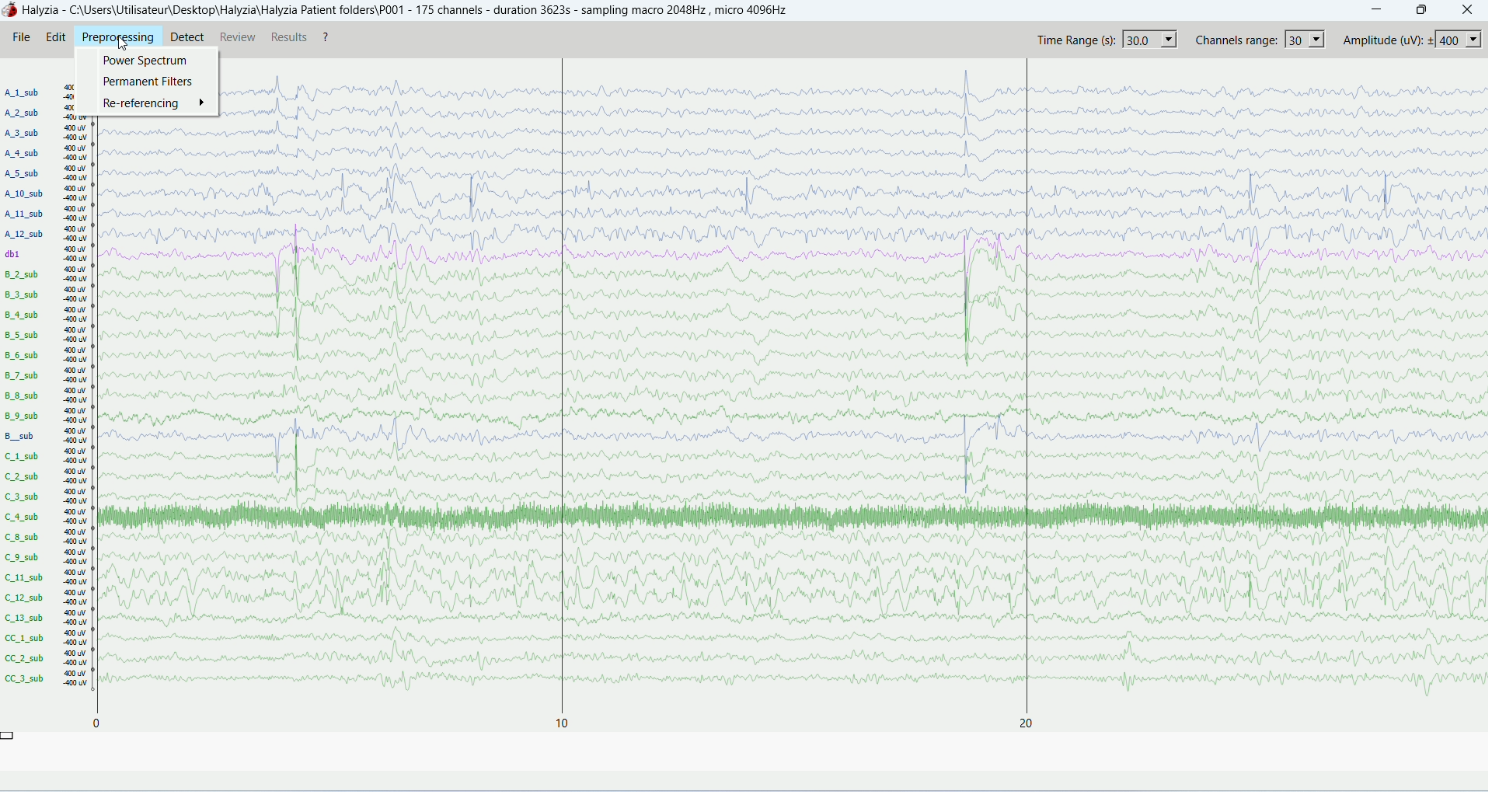
Create annotations
Hello everyone, in this video I will explain how to annotate your signal.
To create an annotation, you first need to enter the annotation mode. To do so, go to Edit and then click on Annotate or press on the “Tab” button on your keyboard. Select the type of annotation you want to create.
You can select biomarkers, such as Spikes, FRs, or Ripples, as well as other predefined event types, artefacts and notes.After selecting the type of annotation, place your cursor on the signal and double-click .
An artefact is a specific type of annotation which allows you to ignore a selected portion of signal during detections. A note is an annotation across all channels. For other events and notes, you should select a label within the predefined list or insert custom text before double-clicking. The list of labels can be adjusted.
Biomarker annotations are represented in the same colours as the detected event of the same category: red for FRs, yellow for ripples and blue for epileptic spikes. Other events and notes are represented in green, and artefacts are represented in grey.
Once you’ve created your annotation, you can modify the time window by dragging the coloured arrows with your mouse. You can also move the annotation by dragging it.
An annotation can be copied and pasted wherever you want using ctrl+c and ctrl+v shortcuts. If you want to paste an annotation at the same time point as a previous one, you can use ctrl+shift+v. Detected events can be copied and pasted as annotations using the same shortcuts. You can delete an annotation by selecting it and pressing the “delete” button on your keyboard.
To exit the annotation mode, select the cross on the screen or press the “escape” button on your keyboard.
Like automatically-detected biomarkers, manually-added ones can be reviewed in the event viewer windows and the topographic map.
You can also decide to hide or show your annotations in the main viewer. To do so, go to Review, click on Event display and choose the category of annotation you want to hide or show. In this menu, you can also decide to fold or unfold your annotations. Both detected and manually added events will be included.
This concludes our tutorial – good luck!